Having Trouble with Your Fiber Internet? Here’s How to Identify and Fix It

Having Trouble with Your Fiber Internet? Here’s How to Identify and Fix It
A reliable fiber internet connection has become as essential as electricity or running water in most American homes. When your connection suddenly slows down or drops completely, it can be incredibly frustrating—especially if you’re working from home, streaming movies, or gaming online. The good news is that most issues can be identified and fixed with a few simple steps. Here’s a guide to help you recognize common fiber internet problems and what you can do before calling your provider.
Step One: Is It Really the Fiber?
Before assuming your fiber line is at fault, it’s important to rule out other possible causes. Many slowdowns or dropouts come from issues inside your home network rather than the fiber itself.
- Check your Wi-Fi: If you’re using wireless, the problem might be interference or poor router placement. Try connecting a computer directly to your router with an Ethernet cable. If the speed improves, your Wi-Fi—not your fiber—is the culprit.
- Restart your equipment: Power off both your router and your optical network terminal (ONT) for about 30 seconds, then turn them back on. This simple step resolves many temporary glitches.
- Run a speed test: Use a reputable speed test site (like Ookla’s Speedtest.net or your provider’s own tool) to see if you’re getting the speeds you pay for. Always test with a wired connection for the most accurate results.
If you’re still having trouble after these checks, it’s time to look more closely at your fiber connection.
Common Signs of Fiber Internet Problems
Fiber connections are known for their stability, but issues can still occur—either in your equipment or in the line itself. Here are some typical symptoms:
- No internet at all: The lights on your ONT are off or flashing red.
- Intermittent connection: The internet cuts out for short periods or the speed fluctuates wildly.
- Slow speeds despite good test results: This can point to router issues or network congestion.
- Only certain devices are affected: This often indicates a local Wi-Fi or device-specific problem.
Observing how the issue appears will help you pinpoint the cause more quickly.
Læs også:

Step-by-Step Troubleshooting
-
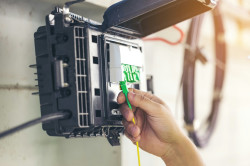
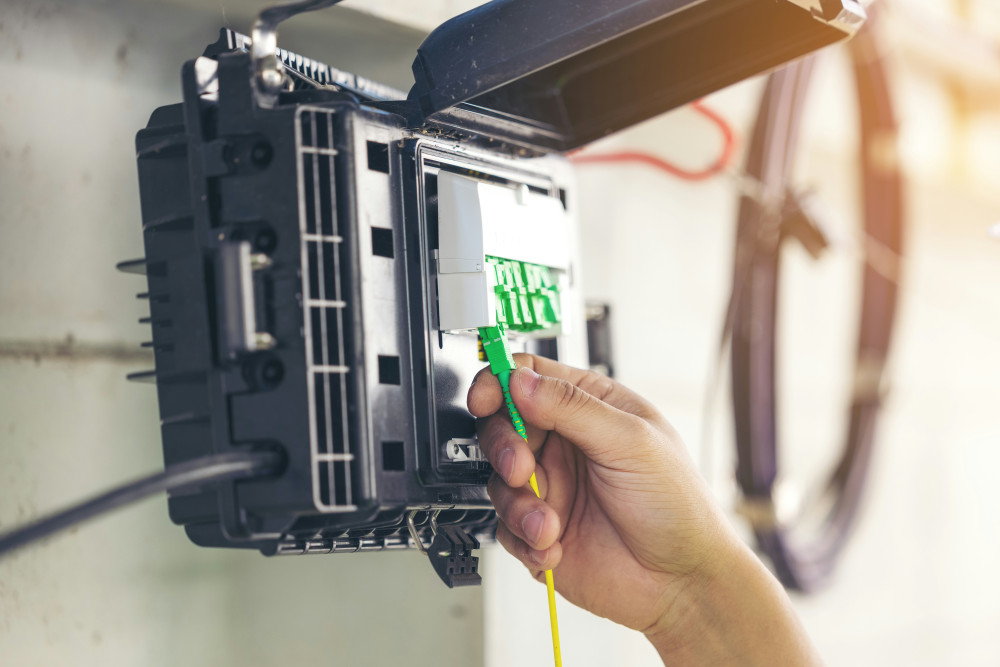
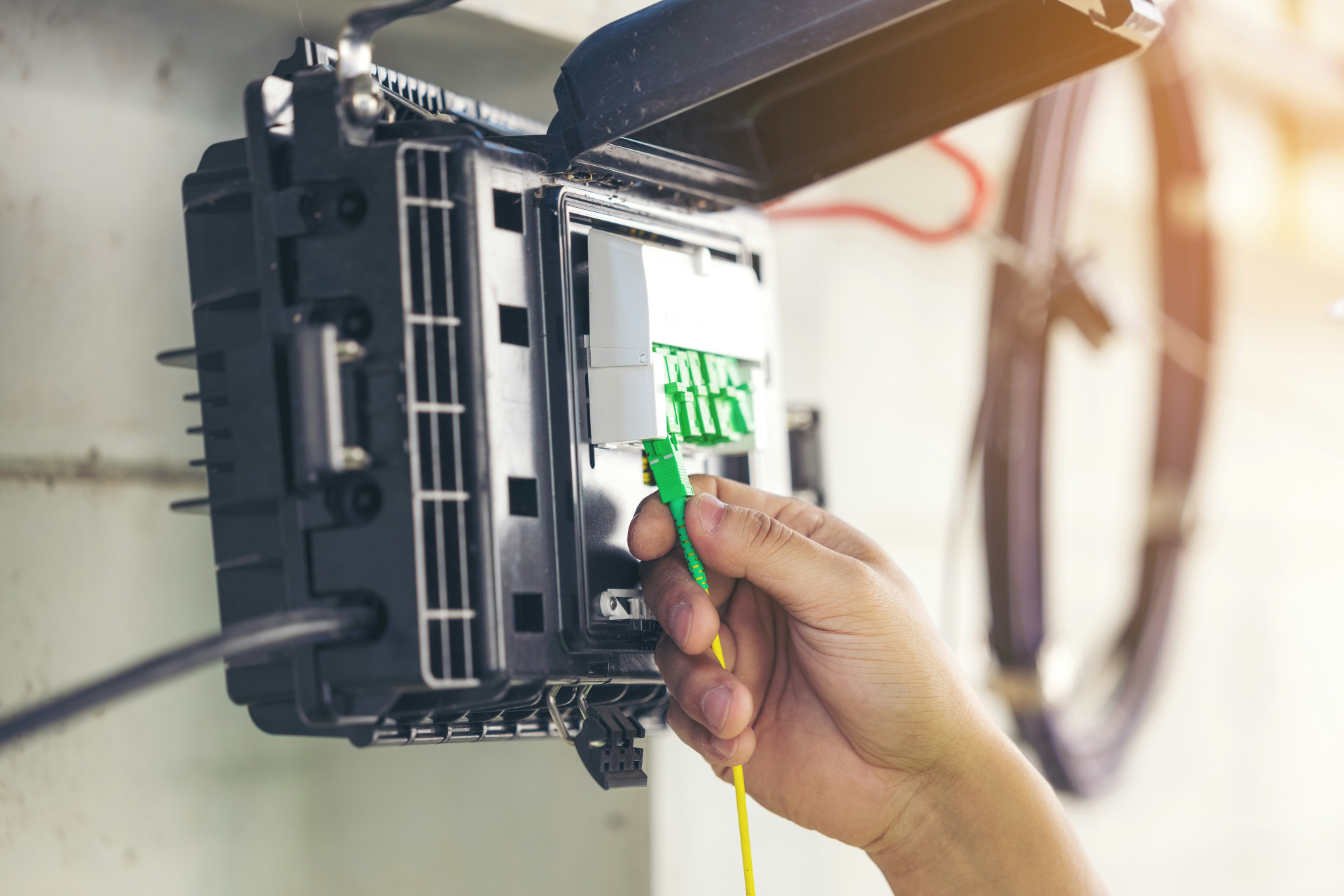
Inspect the ONT (fiber box): Check the indicator lights. A solid green light usually means the connection is active. A red or dark light may mean the signal isn’t reaching your home. Make sure the power supply is secure and the fiber cable isn’t bent or damaged.
-
Check your router: Even if the fiber signal is fine, your router could be the problem. Try resetting it to factory settings or updating its firmware through the manufacturer’s website. If your router is several years old, consider replacing it—newer models handle higher speeds and more devices better.
-
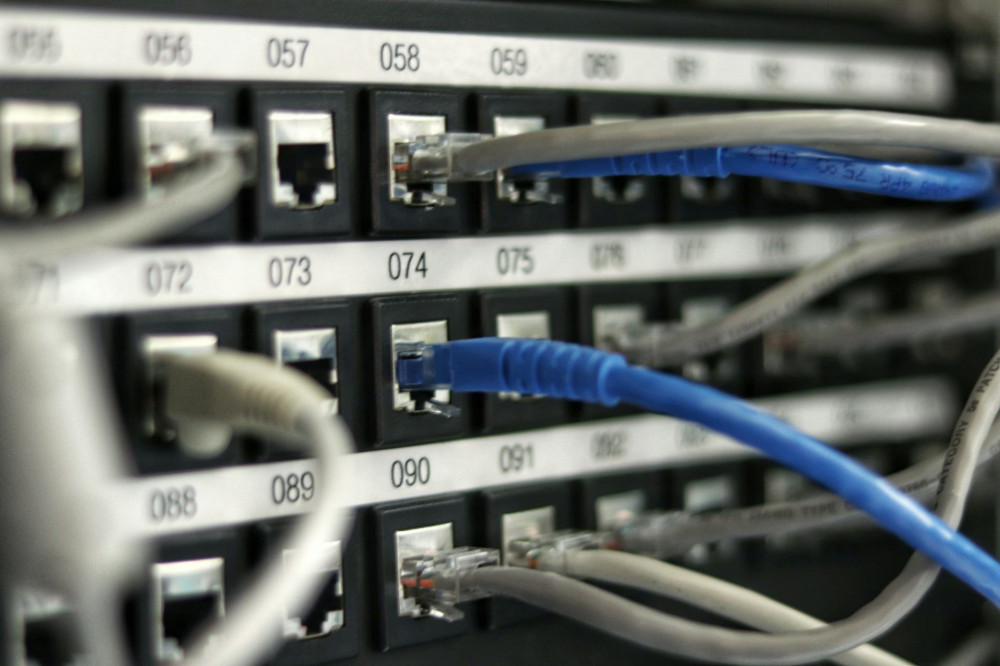
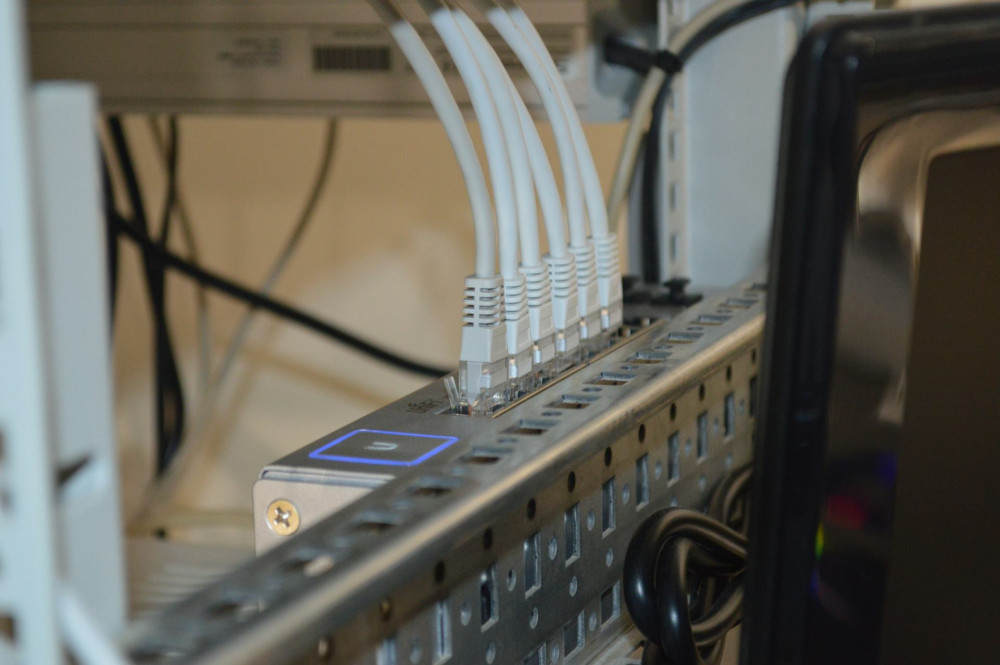
Examine cables and connections: Loose or damaged Ethernet cables can cause unstable connections. Use high-quality cables and avoid sharp bends or pinches.
-
Test with another device: If only one computer or phone is having issues, the problem may be with that device. Forget the network and reconnect, or update the device’s network drivers.
-
Contact your provider: If none of the above steps help, the issue may be outside your home—such as a damaged fiber line or a problem at the local hub. When you call your provider, let them know what troubleshooting steps you’ve already taken. This will speed up the process.
When the Problem Is Outside Your Home
Even the best fiber networks can be affected by external factors. Construction work, weather damage, or issues at the provider’s central office can interrupt service. Most internet providers in the U.S. have an online outage map or status page—check there before calling support.
If you experience frequent outages, keep a record of the dates and times. This documentation can help your provider identify patterns and resolve the issue more effectively.
Preventing Future Issues
While you can’t prevent every problem, a few good habits can help keep your connection stable:
- Place your router centrally and away from walls or large metal objects.
- Avoid overloading your network by limiting simultaneous heavy streaming or downloads.
- Keep your equipment updated—both your router’s firmware and your devices’ software.
- Use surge protection or a UPS to protect your equipment from power spikes.
- Keep fiber connectors clean by gently wiping away dust if you notice buildup.
With a little maintenance, your fiber connection can stay fast and reliable for years.
When It’s Time to Upgrade
If your connection consistently struggles to meet your household’s needs, it might be time for an upgrade. New routers support faster Wi-Fi standards, and many U.S. providers now offer higher-speed plans at reasonable prices. Upgrading can improve both coverage and stability—especially in homes with many connected devices.
A Reliable Connection Brings Peace of Mind
A strong fiber internet connection is the backbone of modern life—from remote work and entertainment to smart home systems. By understanding common issues and knowing how to troubleshoot them, you can save time, reduce frustration, and keep your home connected. Most problems can be solved with a few simple steps—and a bit of patience.
Læs også: